
Wissensdatenbank
How to Create a New Database User in Plesk Artikel drucken
In this tutorial, you will learn how to create a new database user in Plesk.
1. Log in to your Plesk account.
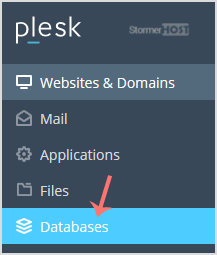
2. Click on Databases from the Sidebar Menu.
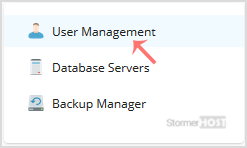
3. Click on User Management tab.
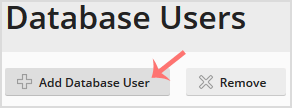
4. Under Database Users, click on Add Database User.
5. Under Adding Database User, fill in the following details:
- Database user name: Enter a database username such as blog.
- Password: Enter the password or click Generate to generate one. Then click on Show and copy the password in a safe place.
- Database: Choose the appropriate database from the drop-down menu.
- Access Control: Choose the appropriate option as per your needs.
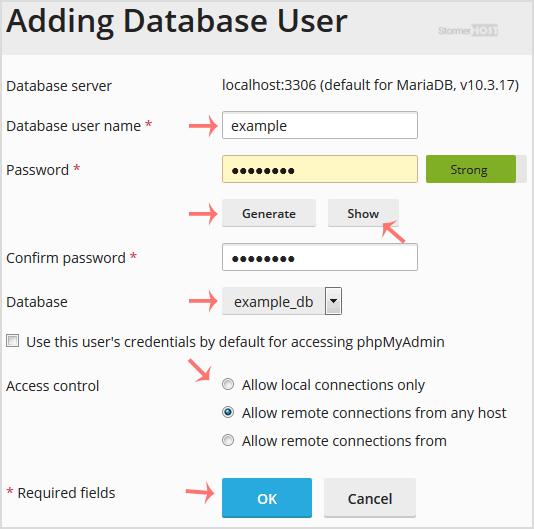
Finally, confirm with OK.
Your new database user will be created.
War diese Antwort hilfreich?
How to Create a Database in Plesk
You can create a database in Plesk by following this tutorial. 1. Log in to your Plesk...
You can create a database in Plesk by following this tutorial. 1. Log in to your Plesk...
How to Delete a Database in Plesk
In this tutorial, you will learn how to delete a database in Plesk. This is helpful when the...
In this tutorial, you will learn how to delete a database in Plesk. This is helpful when the...
How to Download a Dump of a Database in Plesk
You can generate a backup of your database and download it to your computer using Plesk. 1....
You can generate a backup of your database and download it to your computer using Plesk. 1....
How to Remove a Database User in Plesk
In this tutorial, you will learn how to remove a database user in Plesk. 1. Log in to your...
In this tutorial, you will learn how to remove a database user in Plesk. 1. Log in to your...
