
مرکز آموزش
How to Access VPS via VNC in SolusVM 1 پرینت این مقاله
You can access your VPS via VNC in an emergency, such as when a firewall blocks your IP, the Internet connection on the VPS is not working, and when you cannot access SSH. Also, you can use VNC for OS installation/reinstallation.
1. Log in to your SolusVM 1 Control Panel.
2. If you have multiple VPSs, select the appropriate one.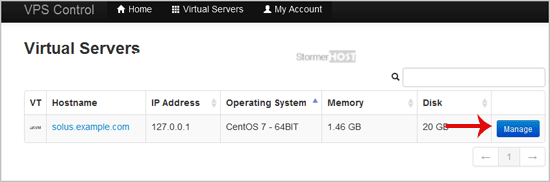
3. Click on VNC.
4. The new VNC page will open. Click on HTML5 VNC Client SSL(Recommended) or Java VNC Client.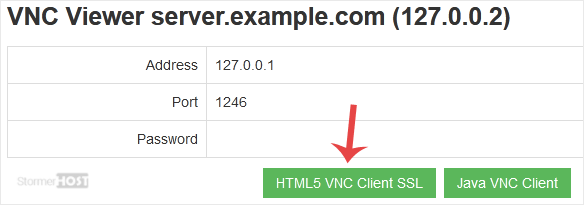
5. The VNC Area will resemble the following screenshot: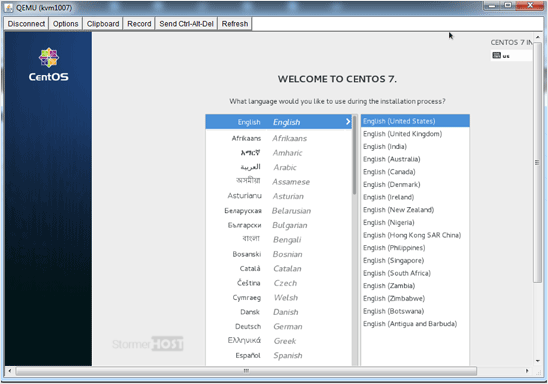
Now you know how to use VNC to access your VPS in SolusVM 1.
آیا این پاسخ به شما کمک کرد؟
مقالات مربوطه
How to Reboot/Restart VPS in SolusVM 1
You can restart VPS via the command line or SolusVM 1. How to Reboot/Restart a VPS via SolusVM...
You can restart VPS via the command line or SolusVM 1. How to Reboot/Restart a VPS via SolusVM...
How to Forcefully or Gracefully Shut Down the VPS in SolusVM 1
You can shut down the VPS in two ways - forcefully or gracefully in SolusVM 1. How to...
You can shut down the VPS in two ways - forcefully or gracefully in SolusVM 1. How to...
How to Start/Boot Your VPS in SolusVM 1
If your VPS is down/offline, you can start it using SolusVM 1.1. Log in to your SolusVM 1 Control...
If your VPS is down/offline, you can start it using SolusVM 1.1. Log in to your SolusVM 1 Control...
How to Reinstall OS Using SolusVM 1 OS-Reinstaller
You can easily Install/Reinstall the operating system using SolusVM 1. However, note that this...
You can easily Install/Reinstall the operating system using SolusVM 1. However, note that this...
How to Enable Disable APIC, ACPI, VNC in SolusVM 1
SolusVM 1 allows you to enable or disable VNC, PAE, APIC, and ACPI.1. Log in to your SolusVM 1...
SolusVM 1 allows you to enable or disable VNC, PAE, APIC, and ACPI.1. Log in to your SolusVM 1...
