
База на знаења
How to Edit an Account Level/Global Email Filter in cPanel Испечати
Editing an account level or global email filter in cPanel is quick and helps you manage unwanted emails across all your email accounts.
1. Log in to your cPanel account.
2. In the Email section, click on Global Email Filters.

3. Under Current Filters are displayed all existing filters. Click Edit next to the appropriate one.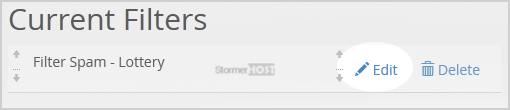
4. Make the desired changes to the filter.
5. Click on Save.
You have edited the global email filter in cPanel, and your updated rules now apply to all email accounts under your domain.
Дали Ви помогна овој одговор?
Понудени резултати
How to Create a "User Level Email Filter" in cPanel
It is hard to stop spam email entirely but you can filter it, discard it, deliver it to the...
It is hard to stop spam email entirely but you can filter it, discard it, deliver it to the...
How to Enable BoxTrapper in cPanel
BoxTrapper requires all email senders not on your Whitelist to respond to verification emails. It...
BoxTrapper requires all email senders not on your Whitelist to respond to verification emails. It...
How to Enable Apache SpamAssassin and SpamBox in cPanel
Apache SpamAssassin is a mail filter that identifies spam. An intelligent email filter uses...
Apache SpamAssassin is a mail filter that identifies spam. An intelligent email filter uses...
How to Create an Account Level/Global Email Filter in cPanel to Fight Spam
It's hard to stop spam email entirely but you can filter it, discard it, deliver it to the...
It's hard to stop spam email entirely but you can filter it, discard it, deliver it to the...
How to Delete an Account Level/Global Email Filter in cPanel
If you no longer need a specific spam filter, deleting an account level or global email filter in...
If you no longer need a specific spam filter, deleting an account level or global email filter in...
