
Tudásbázis
How to Generate a cPanel Backup and Send it to FTP Kinyomtatja ezt a cikket
Backing up is important, and you should do it regularly.
1. Log in to your cPanel account.
2. In the Files section, click on Backup.
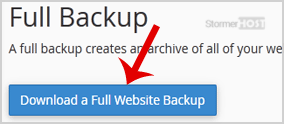
3. Under Full Backup, click on Download a Full Website Backup.
4. Under Generate a Full Backup, enter the following details:
Backup Destination: Select Remote FTP Server as the backup destination.
Email: Enter your email address.
Remote Server: Enter the FTP IP address or FTP domain name (e.g., ftp.example.com).
Remote User: Your FTP Username.
Remote Password: Your FTP Password.
Port: 21 or other FTP Port.
Remote Dir: Enter the remote directory (e.g., /home/username/backupfolder/).
5. Once you fill in the Remote FTP details, click on Generate Backup. 
You should receive a notification when the backup is completed.
Hasznosnak találta ezt a választ?
Kapcsolódó cikkek
How to Download Backup of Home Directory, MySQL, or Email Only
Backing up is important, and you should do it regularly. Follow this tutorial to make a full...
Backing up is important, and you should do it regularly. Follow this tutorial to make a full...
How to Generate and Download a Full Backup of Your cPanel Account
Backing up is important, and you should do it regularly. Follow this tutorial to make a full...
Backing up is important, and you should do it regularly. Follow this tutorial to make a full...
How to Restore Partial Backups in cPanel
You can easily restore a cPanel partial backup. Please, note that restoring such a backup will...
You can easily restore a cPanel partial backup. Please, note that restoring such a backup will...
