
You can use cPanel login details to access your Web Disk, which supports various operating systems such as Mobile OS and others.
1. Log into your cPanel account. (e.g., www.example.com/cPanel )
2. In the Files section, click the Web Disk icon.
3. Under Main Web Disk Account, click on Configure Client Access.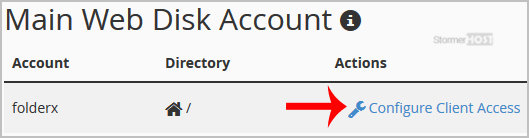
4. Select your operating system from the drop-down menu and then click on the Download Configuration Script.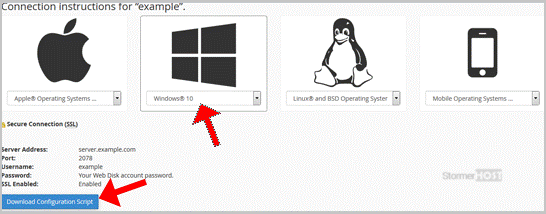
5. Now open the downloaded script. It may take a few minutes before it prompts you for username and password. Enter your Web Disk or cPanel login details and, you will be able to access your website files.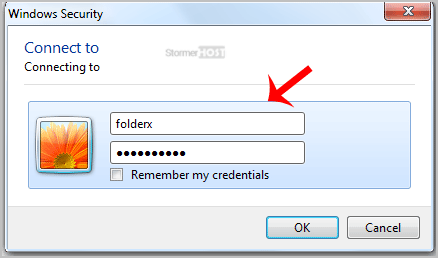
Note: If you are using the Windows OS and the server is not using an SSL, you will need to Enable Digest Authentication, and port 2078 must be allowed in your computer's firewall.
