
Knowledgebase
How to Set the PHP Version per Domain in cPanel Print this Article
In this article, we will demonstrate how to use cPanel to set different PHP versions for individual domains. This can be beneficial, as some applications require specific versions to function correctly. For example, we will set PHP 8.3 on the Example2 domain and PHP 8.1 on the Example1 domain.
1. Log in to your cPanel account.
2. In the Software section, click on MultiPHP Manager.
3. Scroll down to the bottom of the page. Select your domain from the left side of the screen. You can view the PHP Version from the drop-down menu on the right. Please, select the appropriate PHP version from it and click on Apply.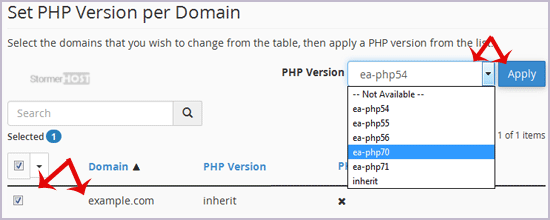
4. Now we will set PHP 8.3 on Example2. Scroll down and select the example2 domain. Then choose the PHP version as 8.3 and click apply.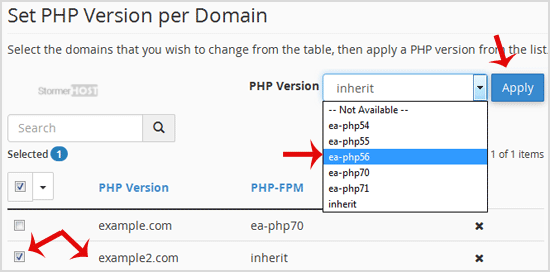
Congratulations, both of your domains are now using different PHP versions.
Was this answer helpful?
Related Articles
If you have access to your cPanel account, follow these steps to reset your password: 1. Log in...
If you want to receive a notification on reaching your disk quota, bandwidth usage limit or wish...
Switching over to another cPanel theme with a different style is easy.1. Log in to your cPanel...
cPanel supports many languages. If you want to change your cPanel language to a native one, you...
You can use cPanel's built-in file manager instead of an FTP program to manage your website...
